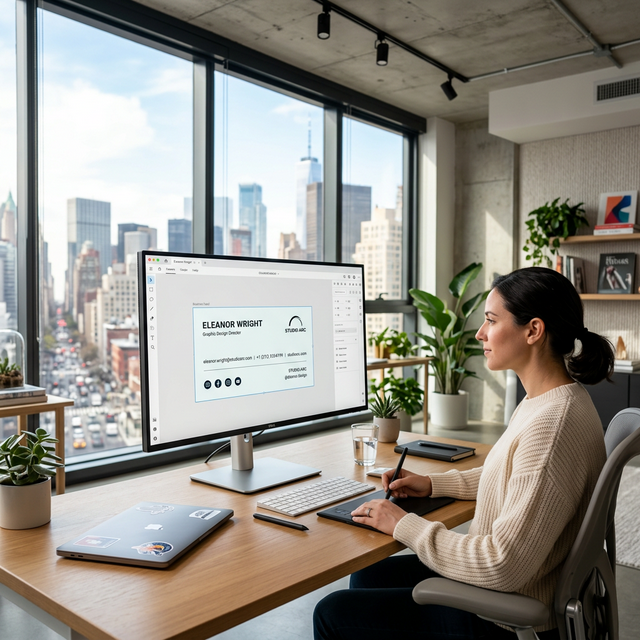
While our app provides several elegant templates, we know that many of our users want complete creative control. That’s why we’ve made our platform compatible with external design tools like Canva.
Why Use Canva?
Canva is one of the world’s most popular design platforms for a reason. It offers thousands of professional business card templates, fonts, and graphic elements. If our built-in designs don't quite match your specific vision, Canva is the perfect tool to bridge that gap.
The Workflow: From Canva to QRNameCard
Creating your dream card is a simple three-step process:
Step 1: Design in Canva
Head over to Canva and search for "Business Card". Create your design, ensuring you leave a small space for where you want the QR code to eventually sit. Make sure to include your name and key info in the design itself.
Step 2: Download as High-Res Image
Once you are happy with your design, download it as a PNG or JPG at high quality. This ensures that the final "baked" card looks crisp on all devices.
Step 3: Upload and Add QR in Our App
Go to the QRNameCard generator, fill in your contact details, and in the template selection step, choose "Upload My Own". Upload your Canva design, place the generated QR code in your designated spot, and hit save!
The Result
You now have a digital business card that perfectly matches your brand identity, created with the world’s best design tools, and powered by our friction-less contact sharing technology.